Back
June 20, 2024
Analytics & BI Dashboards
Improving Employee Productivity with Time Tracking
Pfactorial
Share

In today's fast-paced business environment, organisations are continuously seeking innovative solutions to streamline operations, enhance employee productivity, and optimise payroll expenses. A robust time tracking system emerges as a crucial tool in achieving these objectives by providing accurate insights into employee work patterns and facilitating efficient payroll calculations. However, traditional methods of manually tracking employee hours are often fraught with errors and inconsistencies, hindering productivity and introducing complexities into payroll management
To address these challenges, we propose a dashboard that consolidates employee time tracking data and presents it in a clear and concise manner. The dashboard will not only display individual employee hours but also calculate their pay based on their respective hourly rates.
This blog outlines the development of a sample dashboard that addresses time tracking concerns. To achieve this, we've utilised two datasets containing data for two employees:
● Daily Log: This dataset encompasses employee login and logout times, incorporating lunch breaks.
● Employee Details: This dataset stores employee-specific information, such as hourly rates and overtime rates.
The following outlines the columns created for the dashboard:
1. Calculating Total Time, Lunch Time, and Log Time
The code first calculates the total time an employee has worked by subtracting their start time from their end time. This is done using the DATEDIFF() function, which calculates the difference between two dates in a specified time unit. In this case, the difference is calculated in hours.
Total time = DATEDIFF(Entries[Start Time],Entries[End Time],HOUR)Next, the code calculates the time an employee has spent on lunch by subtracting their lunch start time from their lunch end time. This is also done using the DATEDIFF() function, but in this case, the difference is calculated in minutes.
Lunch time = DATEDIFF(Entries[Lunch Start Time],Entries[Lunch End Time],MINUTE)Finally, the code subtracts the lunch time from the total time to get the employ
Log time = Entries[Regular time]-(Entries[lunch time]/60)2. Checking for Overtime
The code then checks whether the employee has worked overtime. Overtime is considered to be any time an employee works more than eight hours per day. This is done using the IF() function, which checks whether the employee's log time is greater than eight hours. If it is, then the code sets a flag variable called check_for_OT to 1. Otherwise, it sets the flag variable to 0.
check for OT = IF(Entries[log time]>8,1,0)3. Calculating Regular Time and Overtime Time
IF() function checks whether the check_for_OT flag variable is equal to 1. If it is, then the code assumes that the employee worked eight hours of regular time and any additional time is considered overtime. This is done by subtracting eight from the employee's log time. The result is stored in a variable called regular_time_taken.
Regular time taken = IF(Entries[check for OT],8,Entries[log time])IF() function is used to calculate the overtime time. If the check_for_OT flag variable is equal to 1, then the overtime time is equal to the employee's log time minus eight hours. This is done by subtracting eight from the employee's log time. The result is stored in a variable called OT_time.
OT time = IF(Entries[check for OT],Entries[log time]-8,0)4.Calculating Regular Cost and Overtime Cost
The code then calculates the employee's regular cost and overtime cost. The regular cost is calculated by multiplying the employee's regular time taken by their hourly rate. The hourly rate is retrieved from the Employee Details table based on the employee's ID.
Regular Cost = Entries[Regular time taken]*LOOKUPVALUE('Employee Details'[Hourly],'Employee Details'[Employee ID],Entries[Employee ID])The overtime cost is calculated by multiplying the employee's overtime time by their overtime rate. The overtime rate is also retrieved from the Employee Details table based on the employee's ID.
OT Cost = Entries[OT time] * LOOKUPVALUE('Employee Details'[OT],'Employee Details'[Employee ID],Entries[Employee ID])5.Calculating Daily Pay
Finally, the code calculates the employee's daily pay by adding together their regular cost and overtime cost. This is done by adding the regular_cost and OT_cost variables.
Daily Pay = Entries[OT Cost]+Entries[Regular Cost]Dashboard
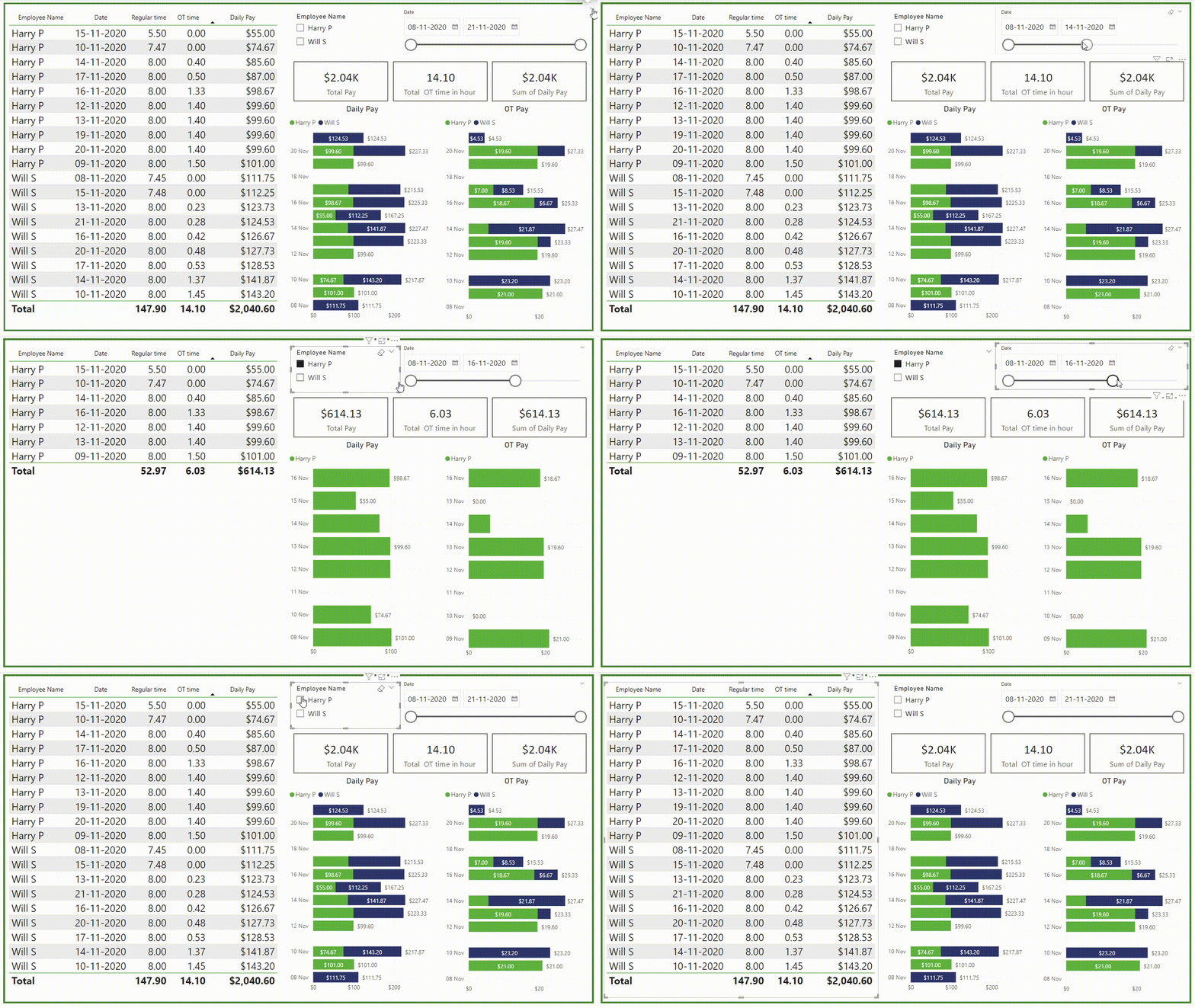
Implementing a comprehensive dashboard for employee time tracking and pay calculations offers a multitude of benefits:
● Enhanced Productivity: By providing employees with visibility into their work hours, the dashboard encourages accountability and promotes efficient time management.
● Streamlined Payroll: Accurate time tracking ensures error-free payroll calculations, saving time and resources.
● Data-Driven Decisions: The dashboard generates valuable insights into employee productivity patterns, enabling managers to make informed decisions about resource allocation and personnel management.
● Improved Employee Satisfaction: Clear and transparent pay calculations foster trust and satisfaction among employees.

Time Tracking – Not a Luxury, a Necessity
In today's competitive landscape, efficient time tracking isn't optional – it's essential. A time tracking dashboard isn't just a record keeper, it's a game-changer. It unlocks a world of possibilities for improved productivity, streamlined payroll, and a happier, more productive workforce.
So, ditch the manual methods and embrace the future of time tracking.